The answer
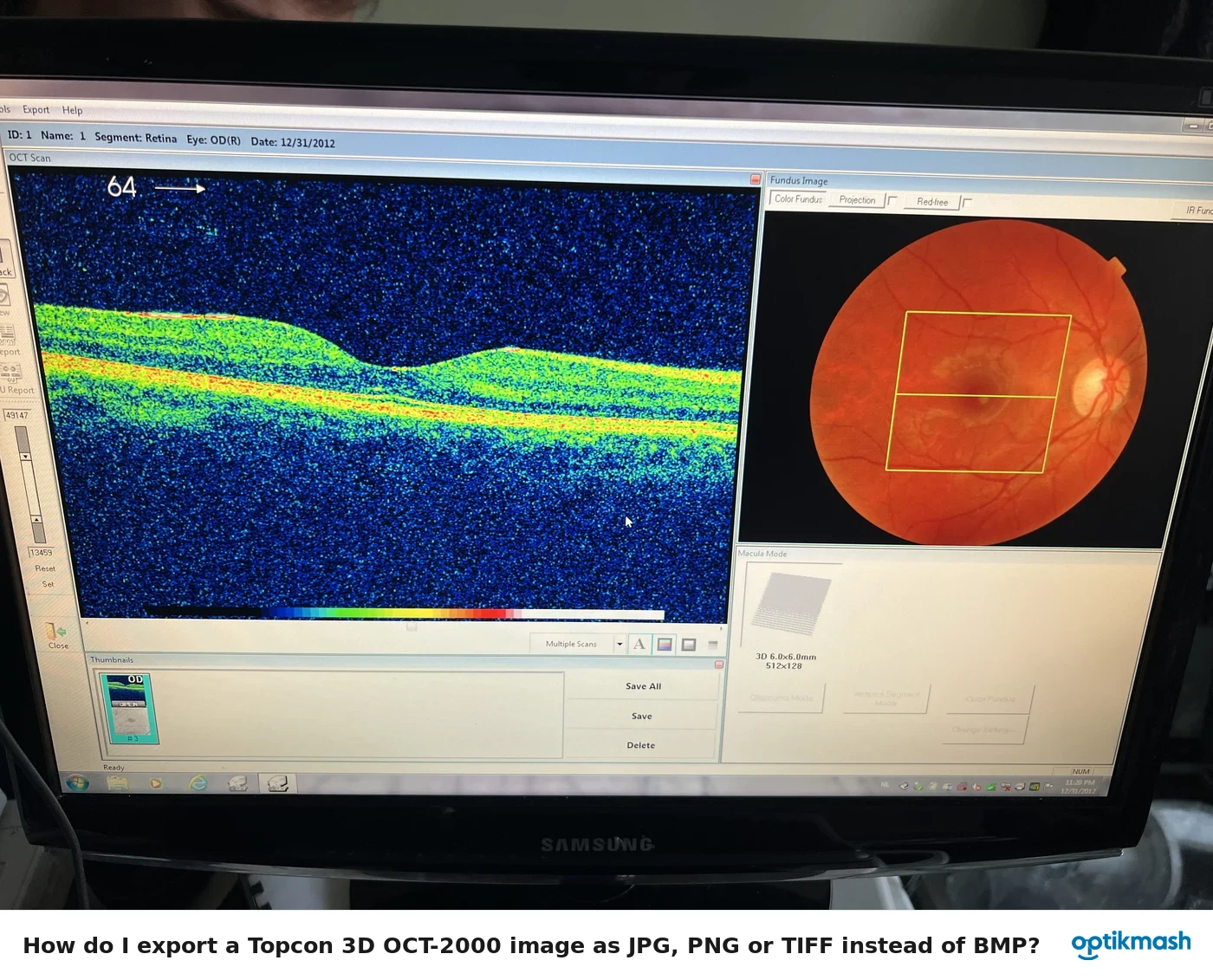
The Show thickness layers only option is initially selected, so only the thickness layers are displayed. In Tools→Options→Thickness, remove that check mark to display other layers as well.
Filed under Settings & modes
This setting controls which detected layers are shown in the tomogram display; it is not the same as changing the thickness preference or switching between Retina Layers and NF Layers.
- From the initial window, open
Tools→Options. - Select the Thickness tab.
- Locate Show thickness layers only.
- Remove the check mark.
- Return to the tomogram display.
With the check mark removed, the menu can include additional layer controls. The manual explains that the extra menu item is displayed when the check mark is removed; this is why a layer option may appear to be missing even though the data has been analyzed.